

Creating Digital Collage Art: Easily Invert Images
I’ll show you 3 apps that each invert images easily.


I made a quick little video to show you how to easily invert a photo. This is something I wish someone had shown me back when I started creating digital art nine years ago.
It’s really simple and I’m going to show you 3 different apps that you can use to do it:
Lightroom Mobile
Afterlight
Snapseed
If you’re not into video, written instructions & screenshots are below the video.
To easily invert an image, you can do it using a ‘curve’ tool. Any decent editing app will have one so if you’re not using any of these apps, check the apps you have because you likely have a curve tool in one of them that will work exactly the same.
These screenshots are using my Lightroom Mobile app.
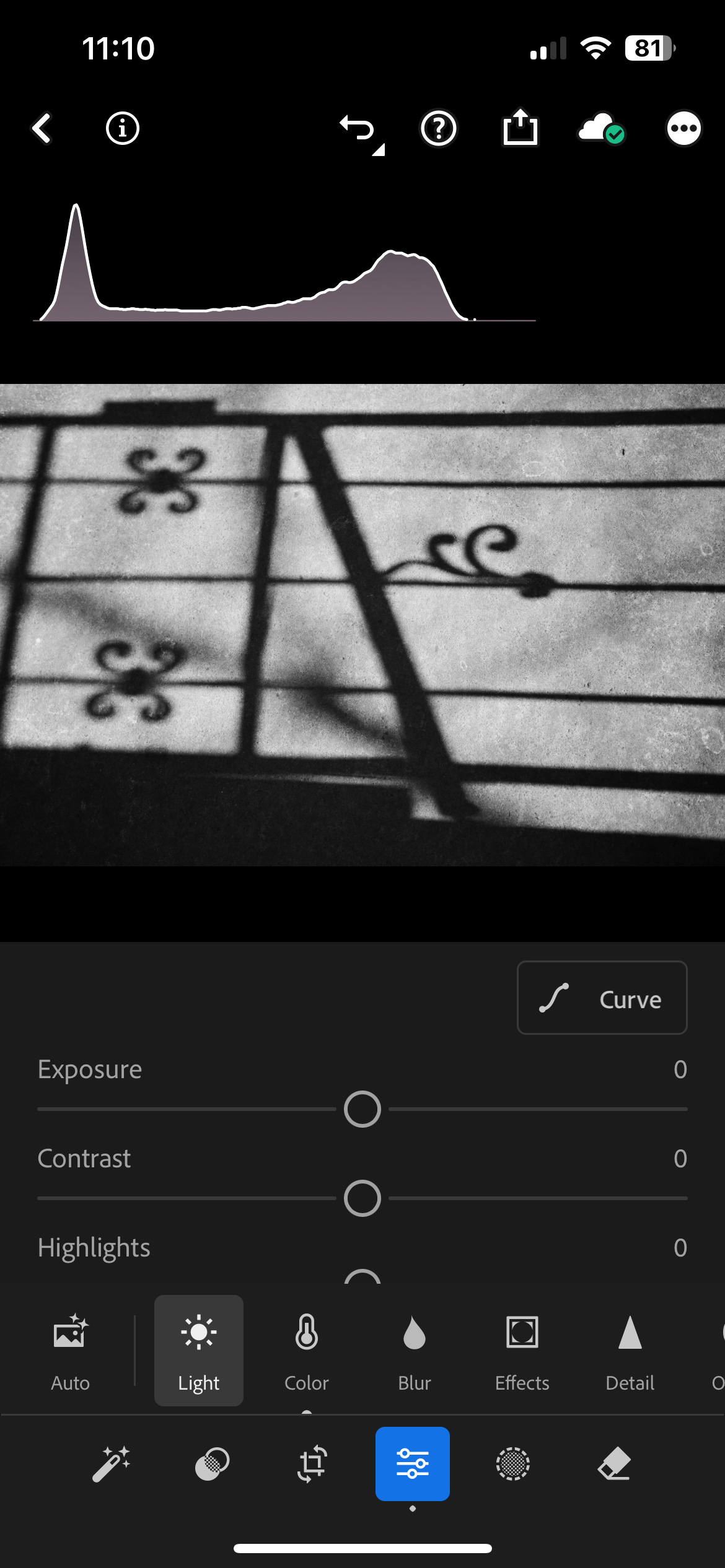
Go to the curve tool which is found in the ‘Light’ section. Click on the ‘Curve’ button:
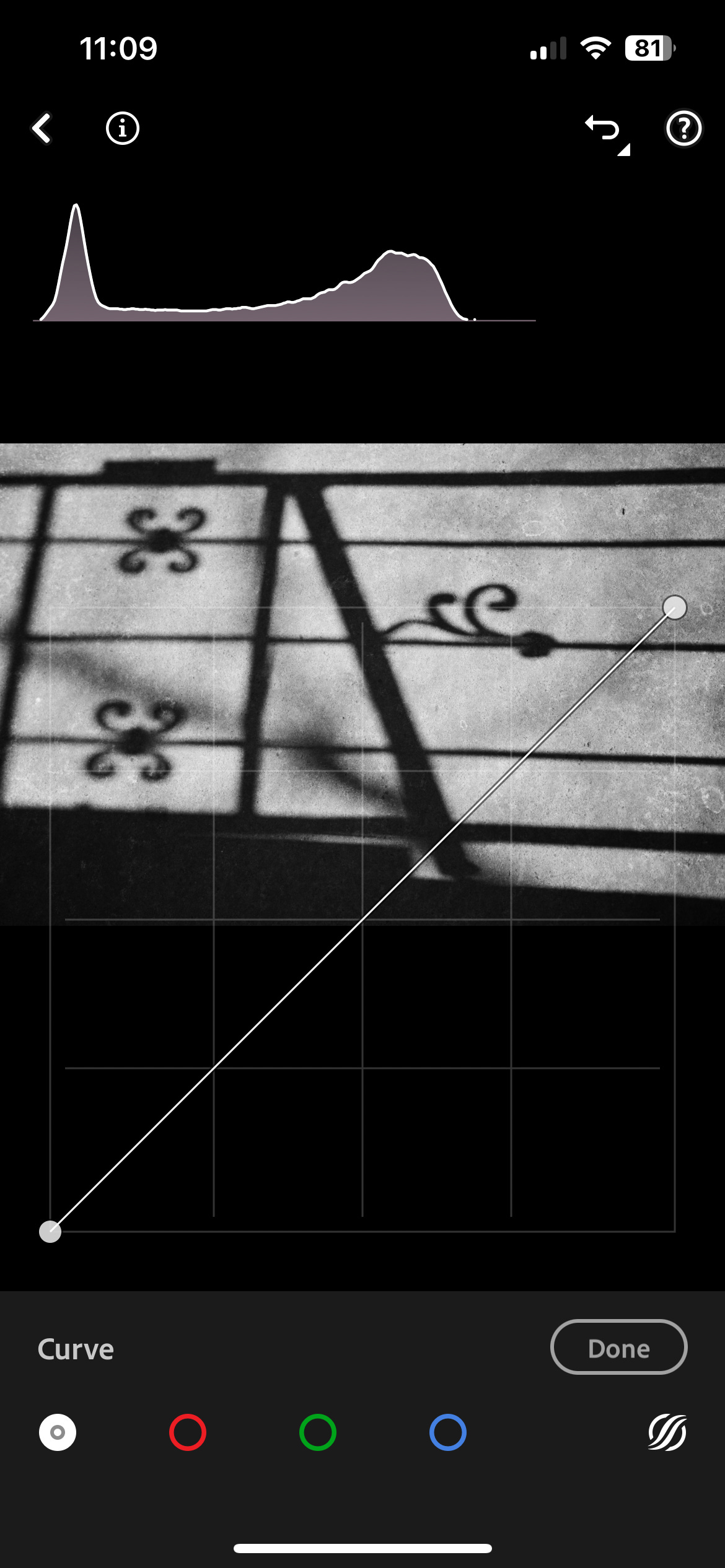
When you are in the curve tool, make sure the white button on the bottom at the far left is clicked. This is the RGB (Red Green Blue) button. We want to do them all at once.
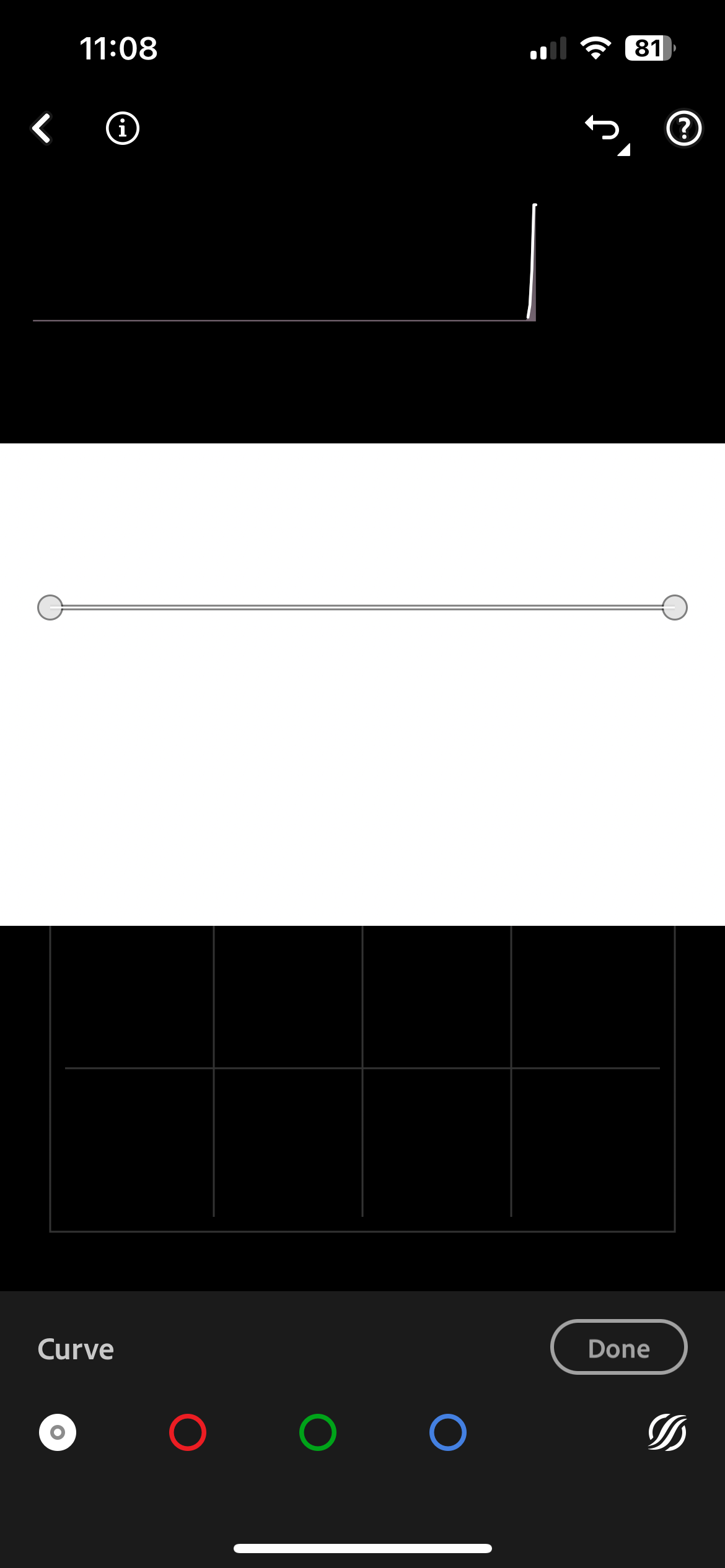
Now the magic happens. Grab the little white dot on the bottom left of the graph and pull it all the way up to the top until you get a completely white screen.
Now do the exact opposite with the little white dot on the top left side of the graph. Drag it all the way to the bottom and voila! Image inverted.
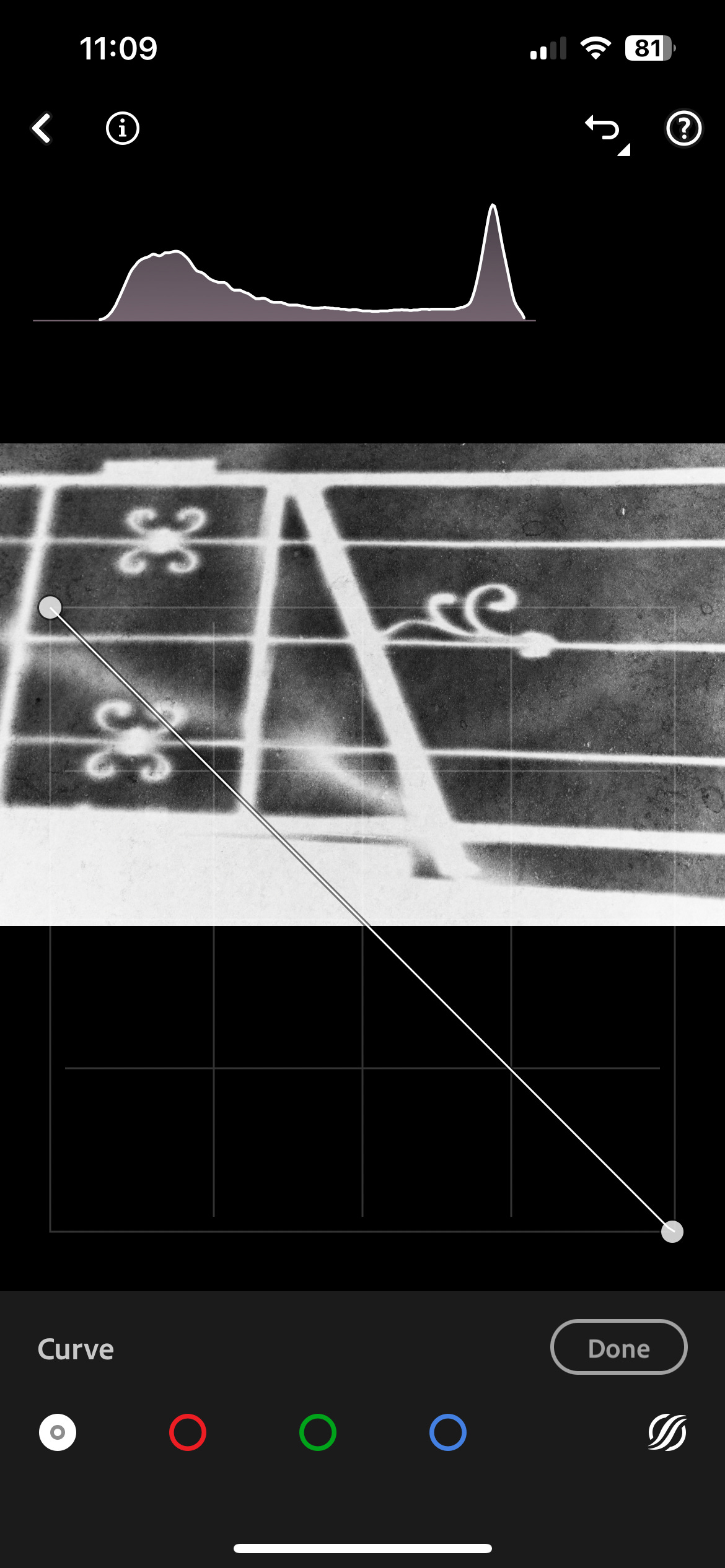
It’s really that easy.
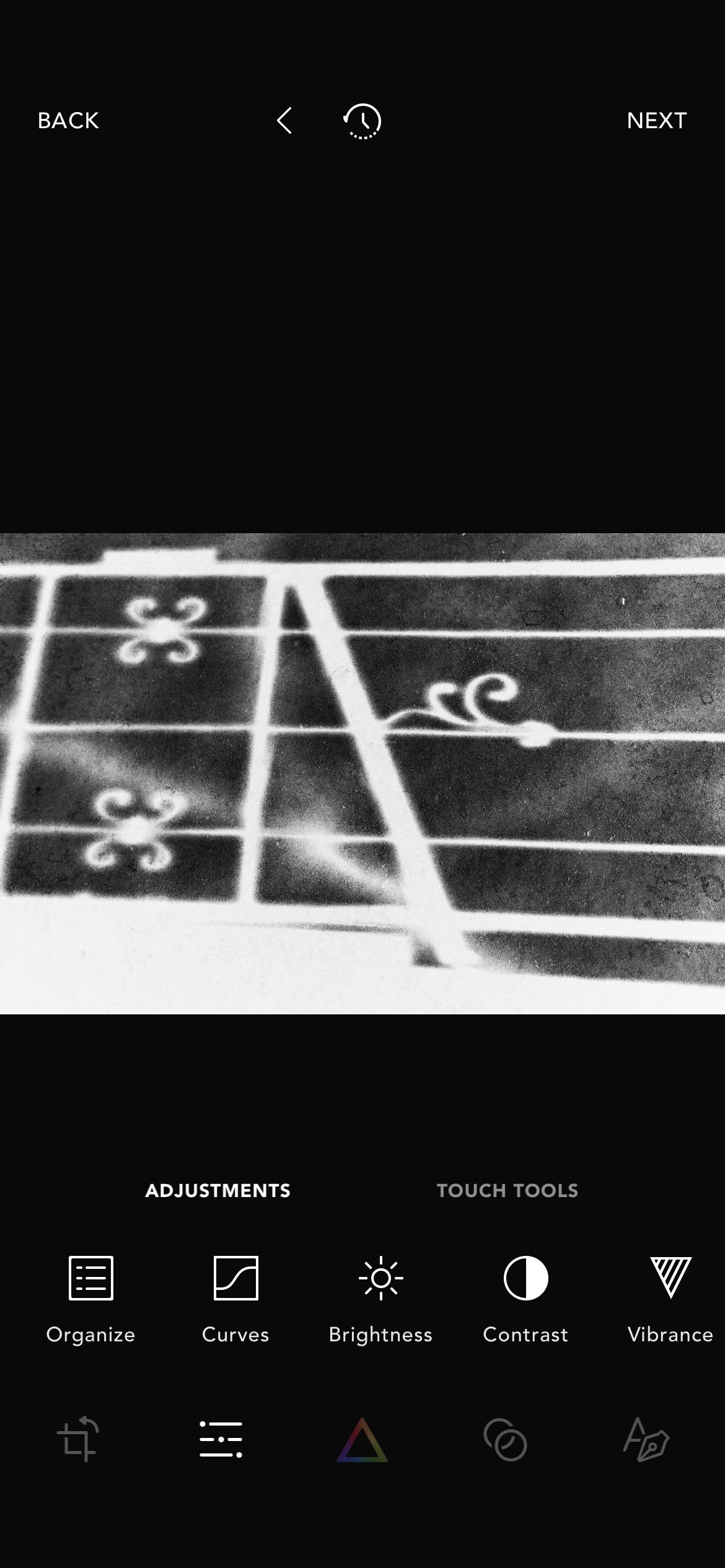
Here is where you can find the curve tool in the Afterlight app (Adjustments, then Curves):
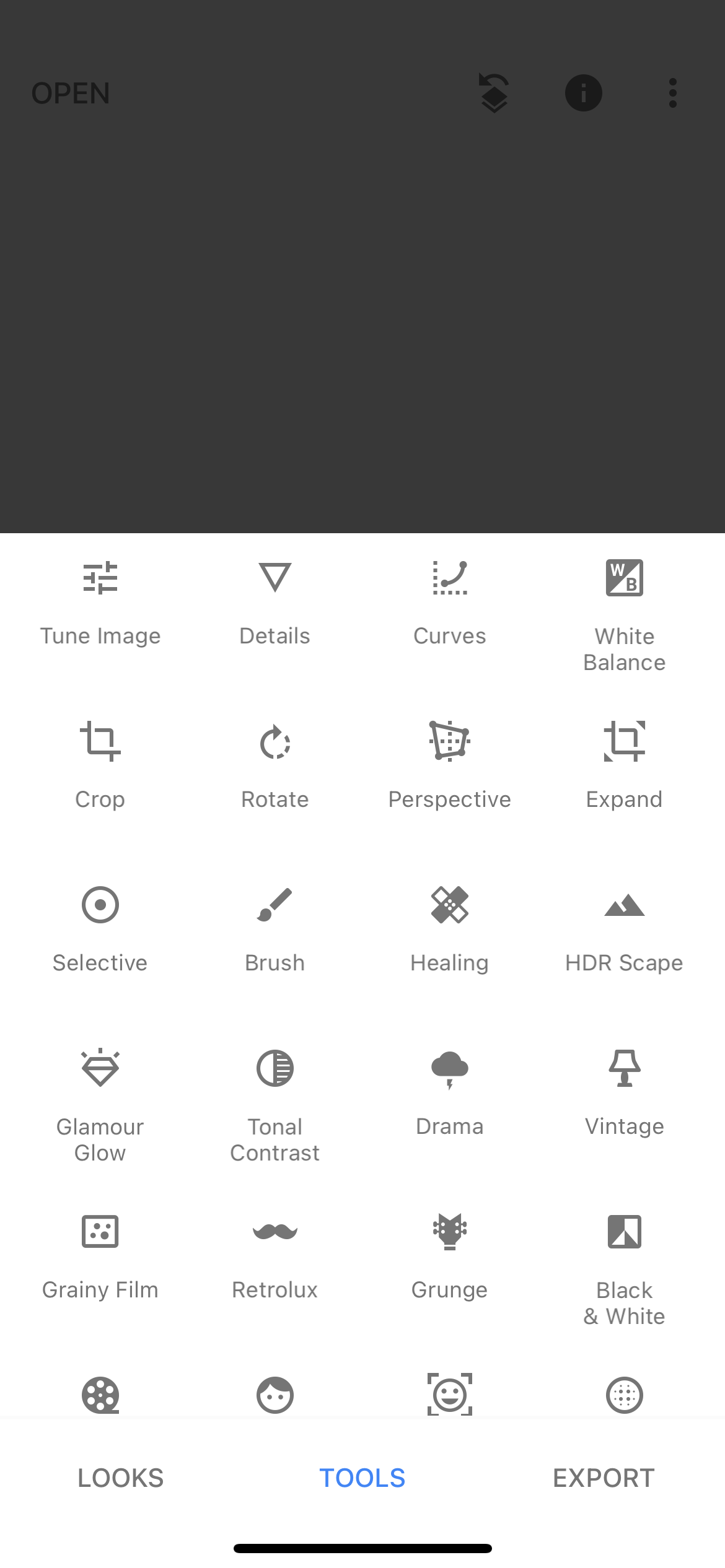
Here is where you can find the curve tool in the Snapseed app (Tools, then top row):
Hopefully this is helpful but as always, if you have any questions or need help, just let me know.
Brilliant! Reminds me of the darkroom process and looking through negative film strips.
I love inverting images. Total mood change!